An ACBuy order walked through with the operator guide images
Each screen between a product link and a parcel at your door, using ACBuy's own guide images and its official tutorial video.
The route in one paragraph
You find an item, ACBuy buys it, the seller ships it to ACBuy's warehouse, ACBuy photographs it, and you send it abroad in a parcel with whatever else you have stored. You pay twice: once for the item and its domestic shipping, once for the international parcel. Everything below follows ACBuy's own shopping guide and uses its guide images; the official video at the end shows the same route in motion.
Have an account first. Registration asks for an email address and a password, with an optional invite code field.
Finding the item inside ACBuy
There are three ways in, and the guide shows all three.
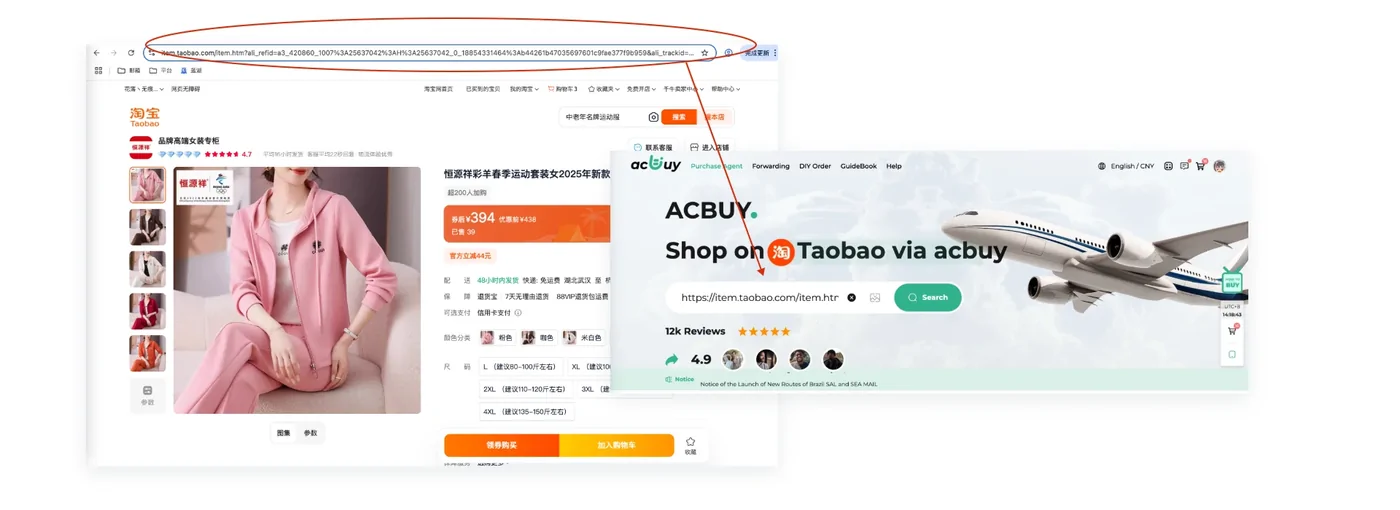
- Paste a link. Copy the product address from Taobao, Tmall or 1688 (or from a catalogue card) and paste it into the search bar at the top of acbuy.com. ACBuy opens its own copy of the product page.
- Search by keyword. Type words into the same bar and pick a source. On November 9, 2026 the 1688 source returned results and the Taobao source returned an error.
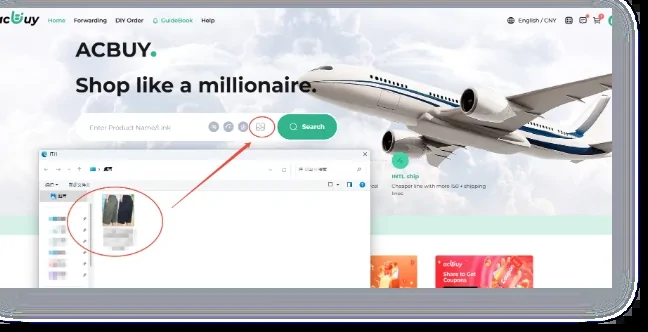
- Search by image. The camera icon in the search bar takes a photo and looks for similar listings.
For shops ACBuy cannot read, use DIY Order in the top menu and fill in the product details by hand.
Choosing the variant and leaving a note
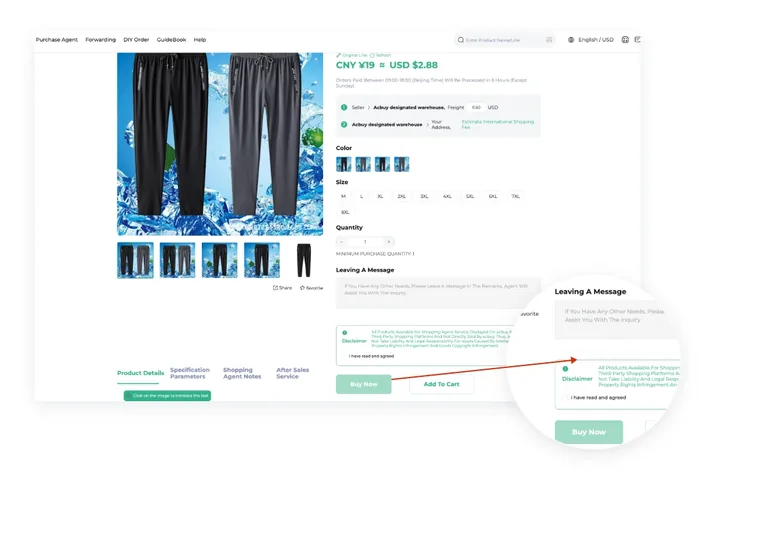
On ACBuy's product page, pick the color and size exactly as the seller lists them. Option names are often in Chinese or are just numbers, so compare the option photo with the one you chose in the catalogue.
Below the options is a message box for the buyer who places your order. This is where to ask for something specific: a measurement, a check that a color matches a photo, or a request to confirm the size chart. Short, concrete requests get followed; open questions often do not.
Check the quantity, then add to cart. The price shown is in CNY with your display currency next to it.
Cart and checkout
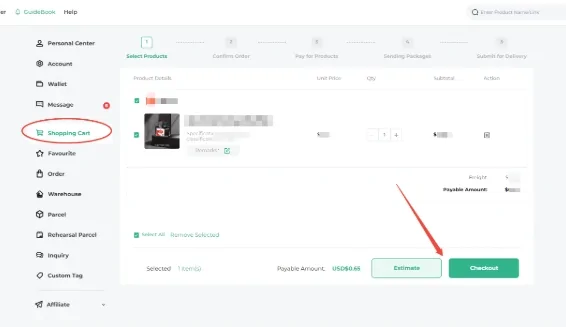
The cart gathers items from several sellers. Tick what you want to buy now and press Checkout; ACBuy then shows a confirmation step with the item price and the seller's domestic shipping for each line.
ACBuy's help page on same-seller orders says that several items from one seller, settled as one order, pay the seller's domestic shipping once; only a very heavy order brings a supplement. Buying them on different days does not get that treatment.
Nothing international is charged here. That comes later, when the items are already in the warehouse.
Paying for the items
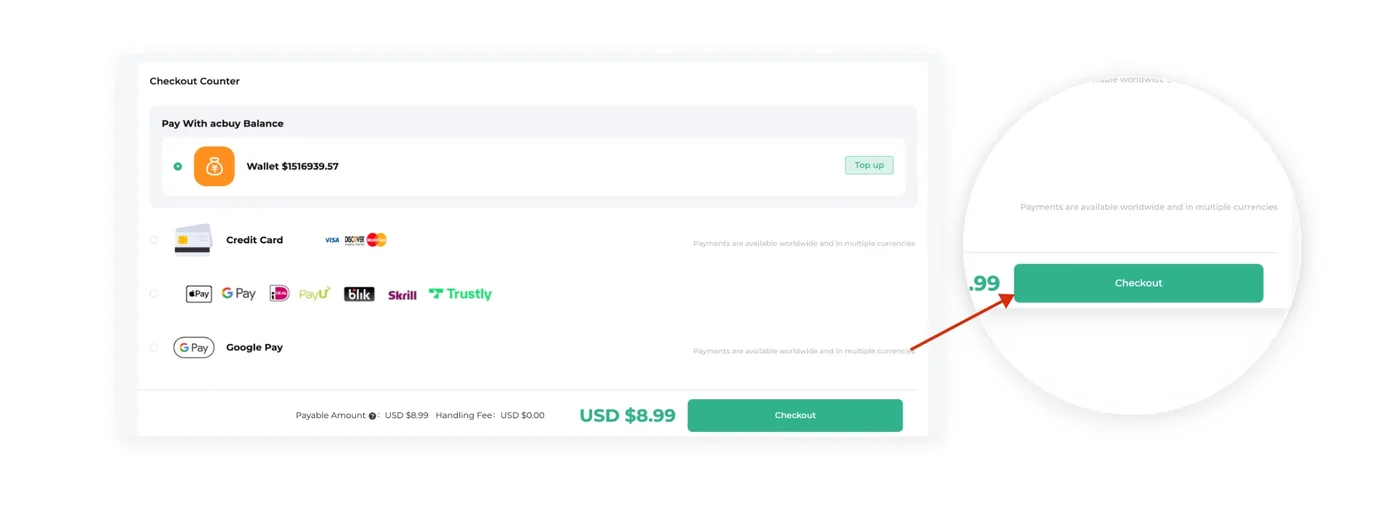
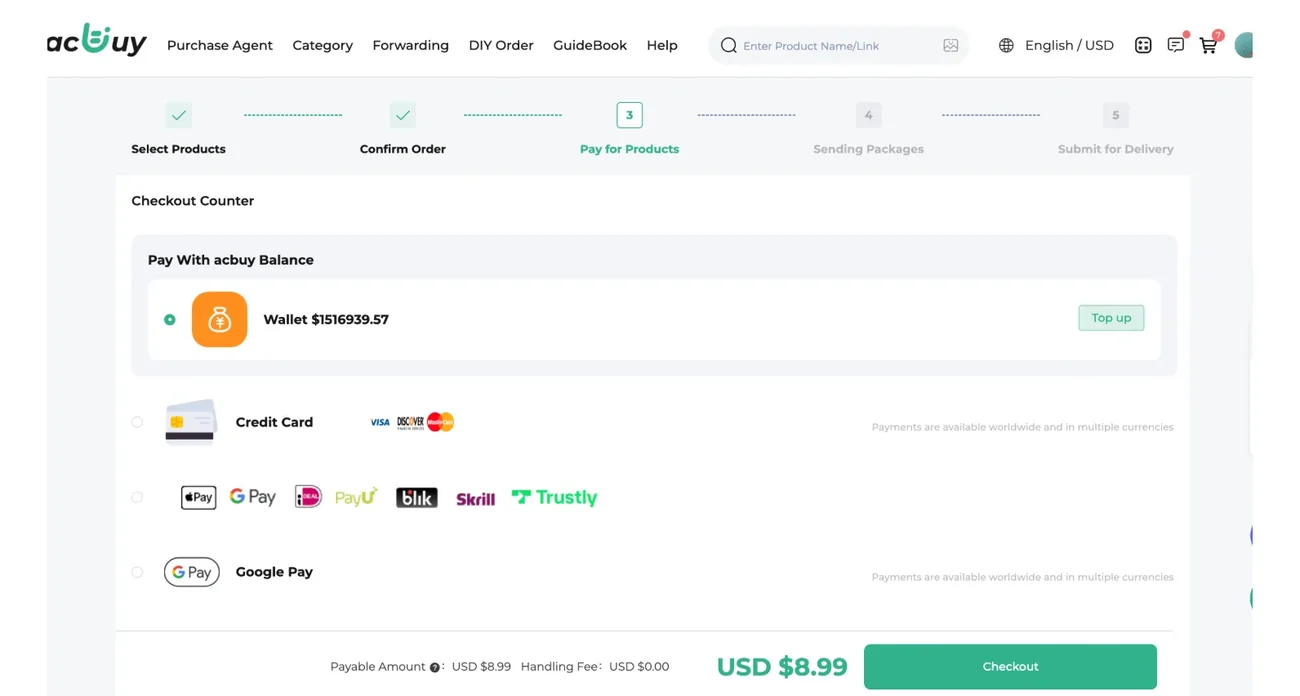
The payment screen, called the checkout counter, offers the ACBuy balance first, then card and wallet options. The guide image shows an example total in USD. Channel fees for cards and wallets are not published anywhere we could find; they appear on this screen when you choose a method, so look before you confirm.
Paying from the balance means topping up first. Not every top-up method can be withdrawn later, so read the wallet rules before you send a large amount.
Seller to Huizhou: the gap after you pay
A buyer at ACBuy takes the order and pays the seller. ACBuy's purchase notice gives two clocks: anything ordered in ACBuy's daytime window, 9 a.m. to 6 p.m. in Beijing, is handled within six hours, and evening or overnight orders by 14:00 the next day. Its warehouse article adds that once a seller ships, the item usually needs three to seven days to reach the warehouse. Your order status moves along as that happens, and the item ends up marked Stored.
The official tutorial below shows these steps on screen, from registration to a parcel on its way.
Stored status, three thumbnails, ninety free days
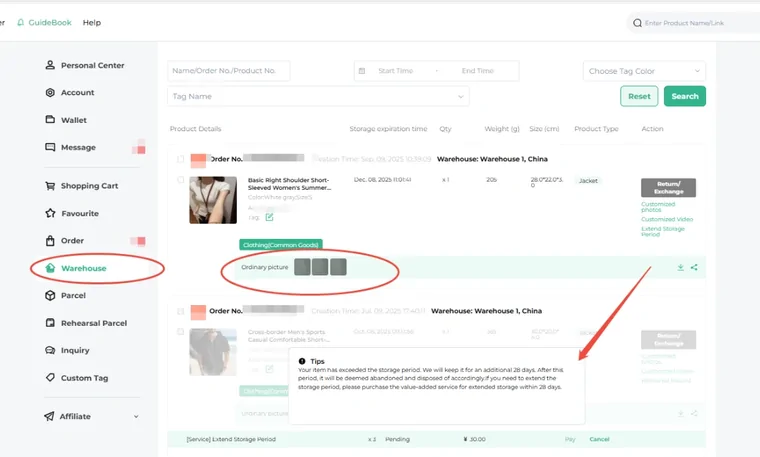
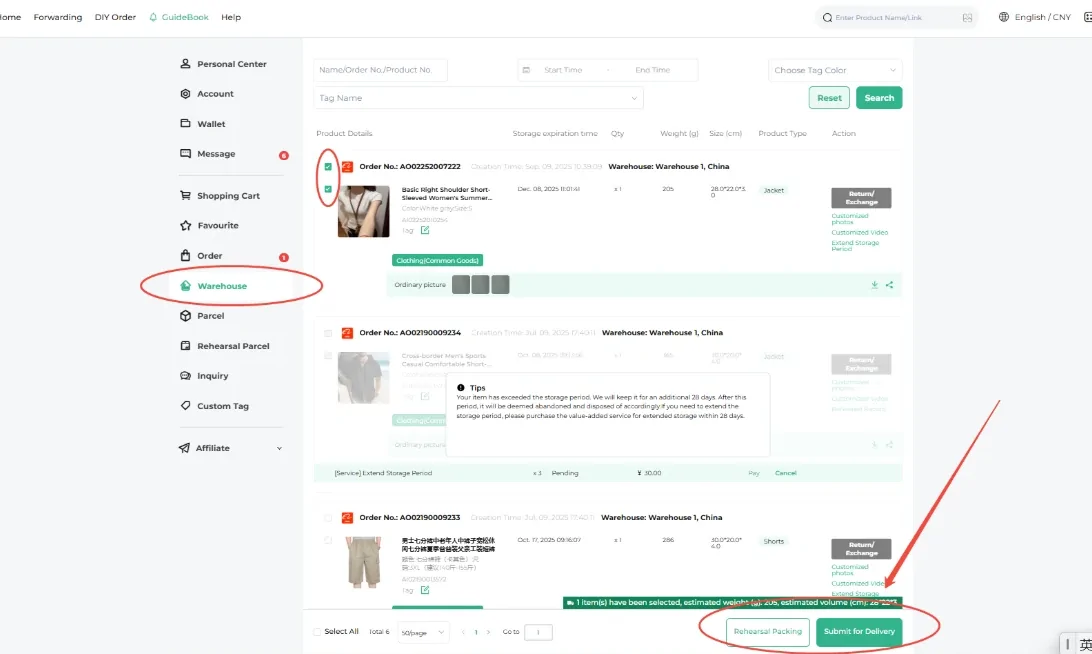
Once an item is Stored, its photos appear in the Warehouse list as small thumbnails under the order. ACBuy's photo service page says the standard inspection includes three photos: front, back, and side or logo.
Look now, not later. A return or exchange is only possible for a limited time after the item is stored, and your level decides how many free attempts you have this month.
The first 90 days after the Stored date cost nothing, which leaves time to wait for other items before you ship.
Submitting the parcel
In Warehouse, tick the stored items that should travel together and press the submit button. On the next screens you confirm the address, choose a shipping line, and fill in the package declaration. If you are unsure about size or weight, this is the point where a rehearsal helps: the warehouse packs the items and reports the real figures before you commit.
Paying for shipping, where the allowance applies
The second checkout covers the international parcel. This is where your level's shipping discount is applied automatically, and where the coupon button sits next to the bill amount. One coupon per package.
The bill on this screen is the real number. Coupons in the wallet that need a higher freight minimum than this parcel reaches cannot be picked here.
Tracking the parcel to your door
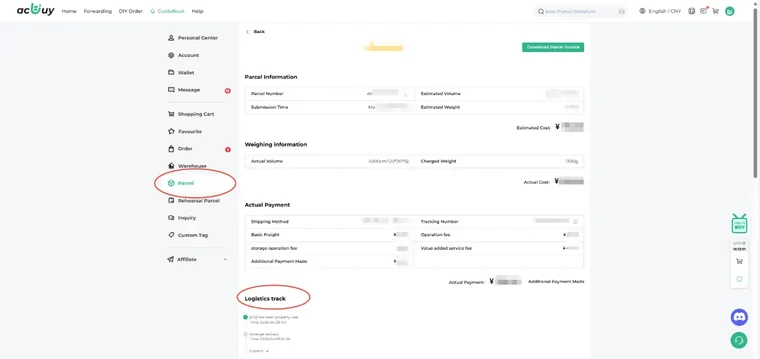
The Parcel page lists every parcel with its status. Open one to see the weighing information, the payment summary and the logistics track at the bottom.
If the track stops moving, ACBuy keeps a help page for exactly that case, Tracking Not Updated, which is the place to start before writing to support.
Once the parcel is received, it counts toward your growth value, which is how the next month's allowance can grow.
Next on this site: Costs and shipping lines VIP levels Help